The MCP server is for wiring external tools into your account. But every action below, and a whole lot more, is available through Ask AI, part of the TourSync AI add-on. No token, no config: open the chat box and you can literally run your business by asking. It reads your data, writes your content, and takes the action for you. Free to try right now.
Section 01What is MCP?
The Model Context Protocol (MCP) is an open standard for giving AI models a uniform way to reach external data sources and tools. Instead of writing custom integration code, an AI assistant connects to an MCP server and gains a defined set of actions it can call.
The TourSync MCP server exposes your account's data and tools through that standard interface, so any MCP-compatible AI application can read from and act on your account on your behalf, safely scoped to the permissions you grant.
Section 02Server details
There are two ways to connect, depending on your client. Claude connects to a dedicated endpoint over one-click sign-in. Everything else (Cursor, Windsurf, n8n, custom agents) connects to the original endpoint with a token.
-
Claude endpoint
https://services.leadconnectorhq.com/mcp/anthropic/v2 -
Token endpoint
https://services.leadconnectorhq.com/mcp/(everything else) -
TransportHTTP Streamable
-
Auth: ClaudeOne-click sign-in. Nothing to store or rotate; you pick the permissions on the consent screen.
-
Auth: token clientsBearer token via the
Authorizationheader, plus your accountlocationId(can also be supplied in a prompt).
Section 03Authentication
Two paths, depending on your client:
- Claude: one-click sign-in (recommended) No token. Add the Claude endpoint as a connector, sign in, and approve the permissions you want to grant. The connection is scoped to one account, respects your user role (Claude can't do anything you couldn't do yourself), and there's nothing to store or rotate. Jump to the Claude walkthrough.
- Cursor, Windsurf, n8n, custom agents: token These authenticate with a Private Integration Token (PIT) you generate inside your account. Create one, grant it the scopes you need, and pass it as a bearer token, steps below.
Generate your token
- In your TourSync account, go to Settings → Private Integrations.
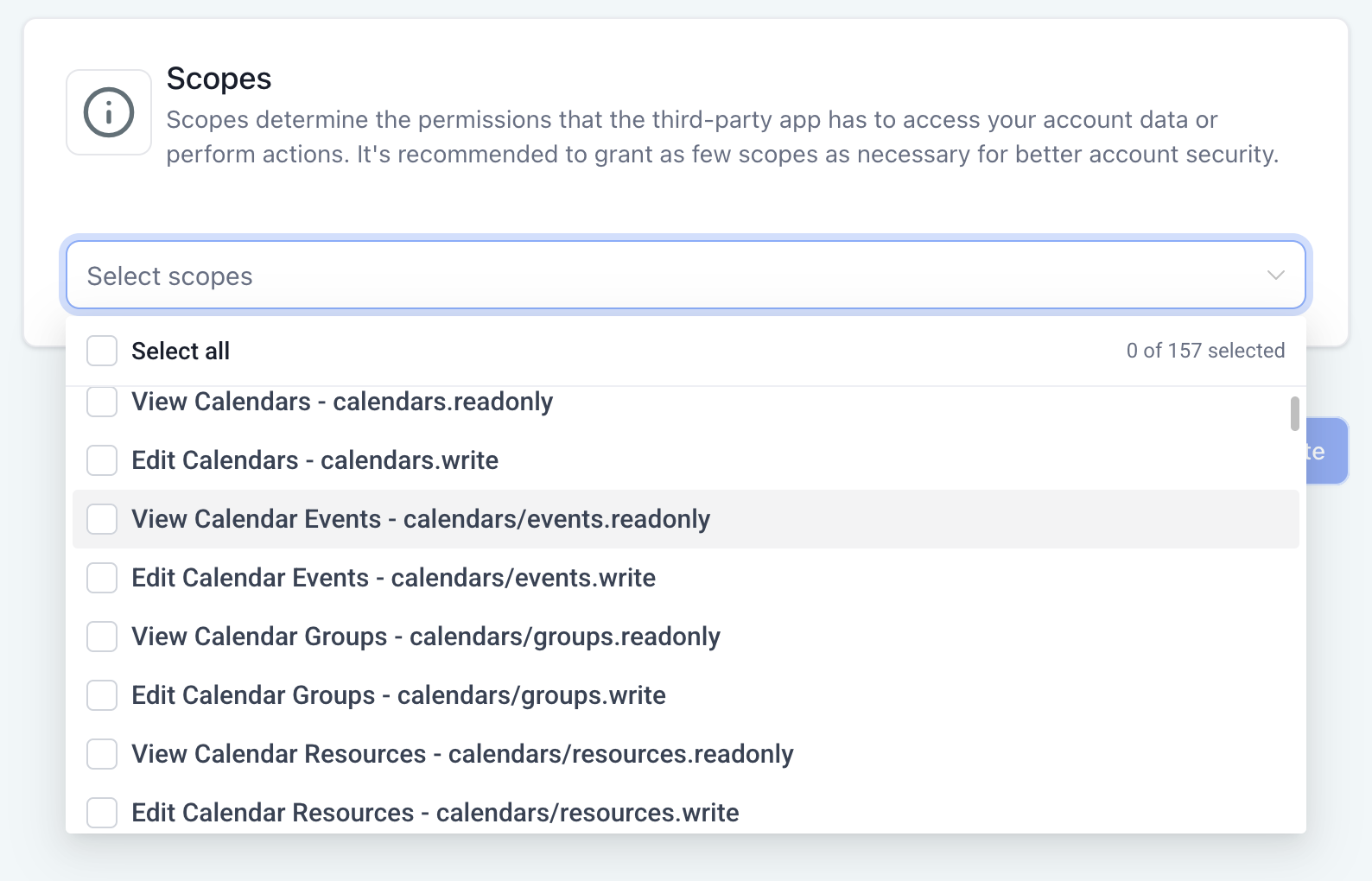
- Create a new integration and select the scopes you want the AI assistant to have (see Section 05).
- Copy the generated token. It starts with
pit-. Store it securely; treat it like a password.
Configuration example
Desktop clients like Claude and Cursor connect through the mcp-remote bridge. Here's the config block. Paste in your own token and account ID. Full Claude Desktop walkthrough →
{
  "mcpServers": {
    "toursync": {
      "command": "npx",
      "args": [
        "mcp-remote",
        "https://services.leadconnectorhq.com/mcp/",
        "--header",
        "Authorization: Bearer YOUR_TOKEN_HERE",
        "--header",
        "locationId: YOUR_LOCATION_ID_HERE"
      ]
    }
  }
}
Section 04Available tools
The token endpoint exposes the 36 focused tools below, across contacts, conversations, calendars, opportunities, payments, content, and account data. Each maps to a single account action the assistant calls by name, and the Scope column shows the permission it needs (grant these in Section 05).
search, fetch, search_operations, describe_operation, execute_operation) that let Claude look up the exact action it needs on the fly and run it, across a much larger slice of your account than the 36 below. It keeps Claude's context lean while giving it far more reach. The permissions you approve at sign-in still bound everything it can touch.
Contacts 8
| Tool | Endpoint | Scope |
| Get ContactsList and filter contacts across your account. | contacts_get-contacts | contacts.readonly |
| Get ContactFetch a single contact's full record by ID. | contacts_get-contact | contacts.readonly |
| Create ContactAdd a new contact to your account. | contacts_create-contact | contacts.write |
| Update ContactChange fields on an existing contact. | contacts_update-contact | contacts.write |
| Upsert ContactCreate a contact, or update it if it already exists. | contacts_upsert-contact | contacts.write |
| Add TagsApply one or more tags to a contact. | contacts_add-tags | contacts.write |
| Remove TagsStrip one or more tags from a contact. | contacts_remove-tags | contacts.write |
| Get All TasksList the tasks assigned to a contact. | contacts_get-all-tasks | contacts.readonly |
Conversations & messages 3
| Tool | Endpoint | Scope |
| Search ConversationFind conversations by keyword, contact, or status. | conversations_search-conversation | conversations.readonly |
| Get MessagesRetrieve the message history for a conversation. | conversations_get-messages | conversations/message.readonly |
| Send a New MessageSend an SMS, email, or channel message into a thread. | conversations_send-a-new-message | conversations/message.write |
Calendars 2
| Tool | Endpoint | Scope |
| Get Calendar EventsList appointments and events on a calendar. | calendars_get-calendar-events | calendars/events.readonly |
| Get Appointment NotesRead the notes attached to an appointment. | calendars_get-appointment-notes | calendars/events.readonly |
Opportunities 4
| Tool | Endpoint | Scope |
| Search OpportunityFind opportunities across your pipelines. | opportunities_search-opportunity | opportunities.readonly |
| Get OpportunityFetch a single opportunity by ID. | opportunities_get-opportunity | opportunities.readonly |
| Update OpportunityChange an opportunity's stage, value, or status. | opportunities_update-opportunity | opportunities.write |
| Get PipelinesList your pipelines and their stages. | opportunities_get-pipelines | opportunities.readonly |
Payments 2
| Tool | Endpoint | Scope |
| Get Order by IDRetrieve the details of a single order. | payments_get-order-by-id | payments/orders.readonly |
| List TransactionsList payment transactions with filters. | payments_list-transactions | payments/transactions.readonly |
Account 2
| Tool | Endpoint | Scope |
| Get Account DetailsRead your account's profile and settings. | locations_get-location | locations.readonly |
| Get Custom FieldsList the custom fields defined on your account. | locations_get-custom-fields | locations/customFields.readonly |
Social posts 6
| Tool | Endpoint | Scope |
| Get PostsList scheduled and published social posts. | social-media-posting_get-posts | socialplanner/post.readonly |
| Get PostFetch a single social post by ID. | social-media-posting_get-post | socialplanner/post.readonly |
| Create PostsDraft and schedule a new social post. | social-media-posting_create-post | socialplanner/post.write |
| Edit PostsUpdate an existing social post. | social-media-posting_edit-post | socialplanner/post.write |
| Get Social Media AccountsList the social accounts connected to your account. | social-media-posting_get-account | socialplanner/account.readonly |
| Get Social Media StatisticsPull engagement stats for your posts. | social-media-posting_get-social-media-statistics | socialplanner/statistics.readonly |
Blogs 7
| Tool | Endpoint | Scope |
| Get All BlogsList the blogs on your account. | blogs_get-blogs | blogs/list.readonly |
| Get Blog PostFetch a single blog post by ID. | blogs_get-blog-post | blogs/posts.readonly |
| Create Blog PostDraft and publish a new blog post. | blogs_create-blog-post | blogs/post.write |
| Update Blog PostEdit an existing blog post. | blogs_update-blog-post | blogs/post-update.write |
| Get Blog CategoriesList the blog categories on your account. | blogs_get-all-categories-by-location | blogs/category.readonly |
| Get All Blog AuthorsList the authors available for blog posts. | blogs_get-all-blog-authors-by-location | blogs/author.readonly |
| Check URL Slug ExistenceCheck whether a blog URL slug is already taken. | blogs_check-url-slug-exists | blogs/check-slug.readonly |
Email templates 2
| Tool | Endpoint | Scope |
| Get Email TemplatesFetch the saved email templates on your account. | emails_fetch-template | emails/builder.readonly |
| Create Email TemplateSave a new reusable email template. | emails_create-template | emails/builder.write |
Section 05Required scopes
The 25 scopes to select when you create your token, grouped to match the tools above. Each matches the picker label exactly. Search the identifier (e.g. contacts.readonly) and tick it.
Contacts
- View Contacts:
contacts.readonly - Edit Contacts:
contacts.write
Conversations & messages
- View Conversations:
conversations.readonly - View Conversation Messages:
conversations/message.readonly - Edit Conversation Messages:
conversations/message.write
Calendars
- View Calendar Events:
calendars/events.readonly
Opportunities
- View Opportunities:
opportunities.readonly - Edit Opportunities:
opportunities.write
Account
- View Locations:
locations.readonly - View Custom Fields:
locations/customFields.readonly
Payments
- View Payment Orders:
payments/orders.readonly - View Payment Transactions:
payments/transactions.readonly
Social posts
- View Social Media Posts:
socialplanner/post.readonly - Edit Social Media Posts:
socialplanner/post.write - View Social Media Accounts:
socialplanner/account.readonly - View Social Media Statistics:
socialplanner/statistics.readonly
Blogs
- View Blog List:
blogs/list.readonly - View Blog Posts:
blogs/posts.readonly - View Blog Authors:
blogs/author.readonly - View Blog Categories:
blogs/category.readonly - Check Blog Post Slug:
blogs/check-slug.readonly - Create Blog Post:
blogs/post.write - Update Blog Post:
blogs/post-update.write
Email templates
- View Email Templates:
emails/builder.readonly - Create, Update & Delete Email Templates:
emails/builder.write
Section 06Connecting a client
Claude connects over one-click sign-in and is covered first. Cursor, Windsurf, n8n, and custom agents use the token endpoint. Those follow.
Claude: one-click (Claude.ai, Claude Desktop, Claude Code)
No token, no Node.js, no config file. You add the Claude endpoint as a connector and sign in.
- In Claude, open Settings → Connectors and choose Add custom connector (labels vary slightly by version).
- Paste the Claude endpoint as the URL:
https://services.leadconnectorhq.com/mcp/anthropic/v2 - Click Connect, then sign in to the account you want to connect: one connection = one account. The sign-in screen is branded LeadConnector, the platform TourSync runs on; that's expected.
- On the consent screen, tick the permissions to grant. Read-only lets Claude look things up; add write access to let it make changes. Grant less now, come back for more later.
- Approve, and you're back in Claude with your TourSync tools live under the tools (🔨) icon.
Claude Code (terminal): add it in one line, then run /mcp and choose Authenticate:
claude mcp add --transport http toursync https://services.leadconnectorhq.com/mcp/anthropic/v2Cursor, Windsurf & manual setups (token)
Clients that don't use one-click sign-in connect to the token endpoint through a small local bridge, mcp-remote, which runs on Node.js and attaches your token for you.
- Install Node.js (v18 or newer) from nodejs.org. The LTS build is fine. This gives you
npx, which runs the bridge. - Open your client's MCP config (Cursor: Settings → MCP; Claude Desktop, if you prefer the manual route: Settings → Developer → Edit Config).
- Paste in the
toursyncblock below. If you already have other MCP servers, add it inside the existing"mcpServers"object rather than duplicating it. - Swap
YOUR_TOKEN_HEREandYOUR_LOCATION_ID_HEREfor your own (see Where to get these below), then save. - Fully restart the client. Your TourSync tools appear under its tools menu.
{
  "mcpServers": {
    "toursync": {
      "command": "npx",
      "args": [
        "mcp-remote",
        "https://services.leadconnectorhq.com/mcp/",
        "--header",
        "Authorization: Bearer YOUR_TOKEN_HERE",
        "--header",
        "locationId: YOUR_LOCATION_ID_HERE"
      ]
    }
  }
}"mcpServers" as a top-level key alongside them (with a comma between keys), not as a second { … } block. And keep the word Bearer in front of your token (Bearer pit-…).
Where to get these
-
Your tokenIn your account, go to Settings → Private Integrations, create an integration with the scopes you need (Section 03), and copy the token. It starts with
pit-. Paste it afterBearer. -
Your account IDThis is your
locationId. Grab it from your browser's address bar while you're in the account (it's the value right after/location/in the URL), or find it under Settings → Business Profile.
On Windows, if the token isn't recognised, spaces inside args can get mangled. See the mcp-remote docs for the environment-variable workaround.
If your tools don't appear
- Fully quit and reopen Claude Desktop Press ⌘Q (macOS) or close it from the system tray on Windows. Closing just the window won't reload the config. MCP servers only load on a fresh start.
- Check the JSON is valid A single stray comma or brace stops the whole file loading. Paste it into a JSON validator first. The config in Section 03 is a known-good starting point.
-
Confirm Node.js is installed
Open Terminal (or Command Prompt) and run
node -v. You should see v18 or higher. If not, install it from nodejs.org and restart Claude. - Tools load but calls fail? Your token is probably missing a scope. Regenerate it with the scopes in Section 05, then paste the new token into the config.
n8n
- Add an MCP Client node and set the URL to
https://services.leadconnectorhq.com/mcp/. - Select HTTP Streamable transport (requires n8n v1.104+).
- Configure Header Auth with an
Authorization: Bearer pit-…header. - Pass your
locationIdvia the system prompt or the user message. - Select the TourSync tools you want available in the workflow.
LangGraph agent
Point any MCP adapter at the endpoint with the same two headers. Example using the LangChain MCP adapter:
agent.pyimport asyncio
from langchain_mcp_adapters.client import MultiServerMCPClient
from langgraph.prebuilt import create_react_agent
async def main():
client = MultiServerMCPClient({
"toursync": {
"url": "https://services.leadconnectorhq.com/mcp/",
"transport": "streamable_http",
"headers": {
"Authorization": "Bearer pit-your-token-here",
"locationId": "your-account-id",
},
}
})
tools = await client.get_tools()
agent = create_react_agent("your-model", tools)
response = await agent.ainvoke({
"messages": [{"role": "user", "content": "Give me all my contacts"}]
})
print(response)
if __name__ == "__main__":
asyncio.run(main())Section 07What you can build
- Contact management by chat Retrieve, update, and create contacts from natural language. Tag and segment guests for a campaign without leaving the conversation.
- Conversational messaging Search threads by keyword or status and send replies. Wire it into a chatbot for triage and auto-responses.
- Multi-step automation Chain actions in one instruction: tag a new booking, send a welcome message, and drop them into a pipeline stage.
- Payment intelligence Pull order details and transaction history on demand to feed reporting or reconcile revenue.
Section 08Roadmap
- ✓ One-click sign-in for Claude: shipped
- One-click sign-in for Cursor, Windsurf & more clients
- Expanded tool coverage across the account
- TourSync-native tools (bookings, manifests, platform sync)
Want early access or help wiring the MCP server into your stack? Book a call and we'll get you set up.